eLearning
  • Home
  • About Us
  • Recent Posts
  • BLaST Bytes
  • Contact Us
  • Click to open the search input field Click to open the search input field Search
  • Menu Menu
  • Link to X

Latest News
Everything thats going on at Enfold is collected here

Hey there! We are Enfold and we make really beautiful and amazing stuff.
This can be used to describe what you do, how you do it, & who you do it for.

Updates to Read&Write

BLaST, BLaST Bytes, Classroom Tools

Latest Updates for Read&Write are LIVE! 

Read&Write is a dynamic Chrome Extension Available for all members of Hall County Schools to support literacy.  The tool can help with everyday tasks such as reading text aloud, understanding unfamiliar words, and even researching assignments.

In July 2024, Read&Write added additional features to their product that include:

  • Co:Writer Prediction: This will provide the strongest, and most accurate word prediction available on the market. It includes a simple-to-use word prediction engine, specifically designed to free up ideas so they more naturally flow into writing – helping to overcome writer’s block and word recall issues.
  • Topics: With Topics, students get topic-specific vocabulary at their fingertips – no more struggling with complex terms. Just a few clicks or keystrokes unlock content-specific words, boosting writing efficiency.
  • To ease the transition and cater to individual preferences, Read&Write will offer three different toolbar modes:
    • Horizontal Mode: The familiarity of the current Read&Write toolbar, with a few small changes. Toolbar sits at the top of the screen and is fully customizable.
    • Vertical Mode: Toolbar is docked on the right hand side of the screen. It’s customizable too, so students can add icons from Read&Write toolbar as desired.
    • Writing Mode: Ideal for students who primarily need writing support and may get overwhelmed with a toolbar with many different features.

The Read&Write Feature Tour is a great resource for teachers and students that shows videos of how to use each item on the Read&Write Tool Bar.

To find additional training guides and webinars (live and on-demand), please visit the Texthelp Academy .

September 18, 2024/by Danica Boykin
https://elearning.hallco.org/wp-content/uploads/2024/09/ReadWrite-1.png 284 394 Danica Boykin https://elearning.hallco.org/wp-content/uploads/2021/04/eLearningLogoPNG.png Danica Boykin2024-09-18 14:35:352024-09-18 15:50:19Updates to Read&Write

Using Book Creator with Canvas

BLaST, BLaST Bytes, Book Creator, Canvas

Did you know Book Creator revamped their Canvas integration early in 2024?

Prior to 2024 the Book Creator / Canvas integration was primarily just single-sign-on.  The features below are now included in the new integration:

  • Create Book Creator assignments in Canvas:

  • Let students turn in Book Creator books directly from Canvas:

  • Read and grade student work from Canvas:

Read all of the details of how to use Book Creator with Canvas here and how to improve your Canvas/Book Creator workflows here.

Also, the video below provides an excellent view of the new integration features as well:

September 10, 2024/by Gregory Odell
https://elearning.hallco.org/wp-content/uploads/2024/09/Book-Creator-with-Canvas.png 284 394 Gregory Odell https://elearning.hallco.org/wp-content/uploads/2021/04/eLearningLogoPNG.png Gregory Odell2024-09-10 08:53:322024-09-10 09:40:57Using Book Creator with Canvas

Don’t Flop over Flip, Try VoiceThread!

BLaST, BLaST Bytes, Classroom Tools, Digital Content Creation

VoiceThread – Group Interaction For All Students

Flip is no longer available as a standalone platform. Microsoft, the owner of Flip, has decided to integrate its functionality into Microsoft Teams for Education, leading to the discontinuation of the Flip website and app. As a result, all Flip content is now in read-only mode, and users have until September 30, 2024, to download any content, including student responses, from Flip.

Voicethread is the closest alternative to Flip that HCSD recommends and supports. It is a multimedia presentation and group interaction tool that accommodates various media types, including images, videos, audio (via microphone or phone), and text annotation. Similar to Flip, Voicethread centers interaction around a central piece of content, and then allows users to “thread” their responses. Importantly, Voicethread integrates seamlessly with Canvas  and allows for connections to the gradebook.

So what exactly is VoiceThread, and how can you get started using it?  Take a look at these videos and the resources below:


  • Introduction to VoiceThread for K-12 Flip Users

  • VoiceThread Workshops, both live and archived events

  • VoiceThread Digital Library, a database of articles about successful VoiceThread projects

September 3, 2024/by Danica Boykin
https://elearning.hallco.org/wp-content/uploads/2024/09/VoiceThread.png 284 394 Danica Boykin https://elearning.hallco.org/wp-content/uploads/2021/04/eLearningLogoPNG.png Danica Boykin2024-09-03 10:54:552024-09-03 10:54:55Don’t Flop over Flip, Try VoiceThread!

Canva Glow-Up for 2024/2025

BLaST, BLaST Bytes, Canva

Canva Glow Up – Refreshed Look for Canva Homepage and Editor

The Canva glow up includes a fresh homepage and editor designed for focused work. Canva made these changes to improve the way you create in Canva, and to make it easier to organize all of your designs, content, and documentation.

Click here to get to know the ‘glowed up’ editor and homepage, and/or watch the 3 minute video below:

Canva also provided an excellent ‘Back to School Teacher Toolkit‘ in case you missed it earlier in the year.

Finally, we wanted to include the latest edition of ‘Connecting the Dots‘ which is the periodic newsletter from Canva for Education. 

August 28, 2024/by Gregory Odell
https://elearning.hallco.org/wp-content/uploads/2024/08/Canva-Glow-Up_Featured-Image.png 284 394 Gregory Odell https://elearning.hallco.org/wp-content/uploads/2021/04/eLearningLogoPNG.png Gregory Odell2024-08-28 09:47:162024-08-28 09:47:16Canva Glow-Up for 2024/2025

Remind Reminders–Preferred Language

BLaST Bytes, Canvas

Communicate with every family in their home language—individually and at scale

Preferred language translation lets you effectively reach all families in their home languages—from direct conversations to district-wide notifications.

Reach families in the languages they understand.

With preferred language translation, messages are automatically translated into 90+ languages on the Remind app and on the web. Parents can select their home language for messaging on Remind, or teachers and administrators can manually update preferred languages for hard-to-reach families.

Support family engagement with two-way translation.

When you send a message to a multilingual group, all you need to do is compose your message in English. From there, you can see which languages your message will be translated into, confirm the number of recipients per language, and preview the translated text, all from one place—no copying and pasting from Google Translate required. Plus, translations are two-way so you can answer questions and build stronger relationships. When a parent responds to your message in their home language, it’s translated back to the preferred language you’ve set.

For more information on Preferred Language:

Preferred language translation FAQs

How do I send translated messages as a teacher, parent, or student?

How can I receive messages in another language?

How can I set a preferred language for my class participants?

August 20, 2024/by Danica Boykin
https://elearning.hallco.org/wp-content/uploads/2024/08/Remind-Preferred-Language-1.png 284 394 Danica Boykin https://elearning.hallco.org/wp-content/uploads/2021/04/eLearningLogoPNG.png Danica Boykin2024-08-20 13:44:062024-08-20 13:44:06Remind Reminders–Preferred Language

Jamboard is going away; Are you ready?

BLaST, BLaST Bytes, Uncategorized

Jamboard is going away and Lucidspark is here to help.

Import all of your Jamboard files into Lucidspark before October 1st, 2024 to ensure that your Jams remain editable.


Read how to here.

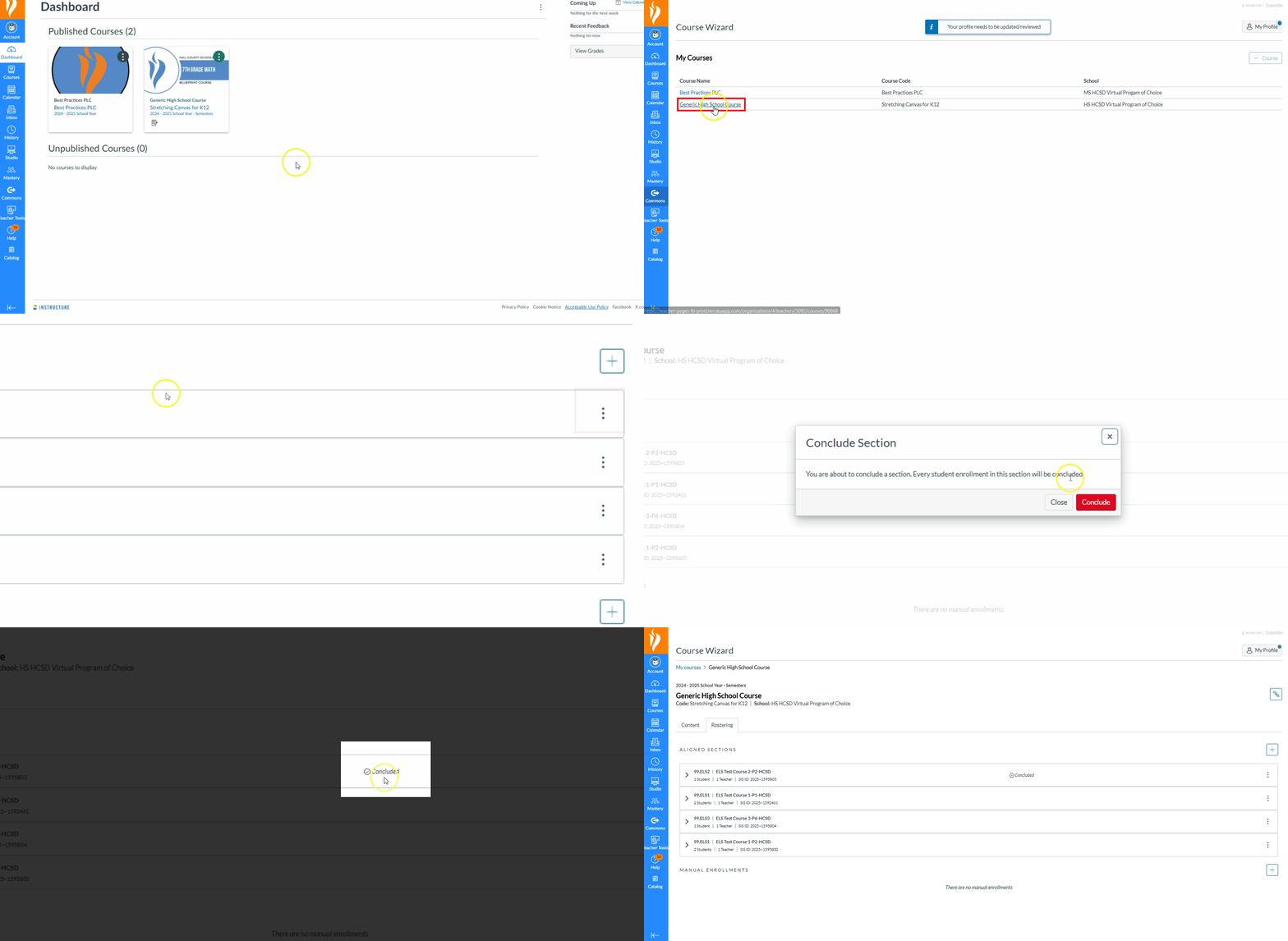
Step 1: Login to Lucid via LaunchPoint

Step 2:  Click the blue + New button

Step 3:  Select Import from the dropdown menu

Step 4:  Choose Jamboard

August 14, 2024/by Gregory Odell
https://elearning.hallco.org/wp-content/uploads/2024/08/Lucid-Jamboard-Alternative.png 284 394 Gregory Odell https://elearning.hallco.org/wp-content/uploads/2021/04/eLearningLogoPNG.png Gregory Odell2024-08-14 13:01:252024-08-16 08:04:42Jamboard is going away; Are you ready?
Page 4 of 12«‹23456›»
  • Blog Classic Grid
  • Blog Fullwidth
  • Blog Masonry
  • Blog Multi Author
  • Blog Single Author Big
  • Blog Single Author Small

Search e-Learning Archives

Search Search

e-Learning Categories

  • AI
  • All Posts
  • BLaST
  • BLaST Bytes
  • Book Creator
  • Canva
  • Canvas
  • Classroom Tools
  • Classwize
  • ClearTouch
  • Content
  • Digital Content Creation
  • Featured
  • Google
  • Kami
  • Microsoft
  • Mobile Devices
  • Productivity
  • Professional Learning
  • Uncategorized

e-Learning Archives

  • May 2026
  • September 2025
  • August 2025
  • July 2025
  • May 2025
  • February 2025
  • January 2025
  • December 2024
  • November 2024
  • October 2024
  • September 2024
  • August 2024
  • July 2024
  • May 2024
  • May 2023
  • September 2022
  • August 2022
  • July 2022
  • April 2022
  • January 2022
  • December 2021
  • November 2021
  • September 2021
  • July 2021
  • March 2021
  • January 2021
  • December 2020
  • June 2020
  • May 2020
  • February 2020
  • January 2020
  • October 2019
  • September 2019
  • August 2019
  • May 2019
  • April 2019
  • March 2019
  • January 2019
  • October 2018
  • September 2018
  • August 2018
  • July 2018
  • May 2018
  • April 2018
  • January 2018

Where To Find Us

Hall County Schools Instructional Support Center

2750 Atlanta Highway
Gainesville, GA 30504

Phone: 770-534-6313

All e-Learning Content

Recent Posts

Our Office Hours

Mo-Fr: 8:00-19:00
Sa: 8:00-14:00
So: closed

2026 © Copyright: eLearning | Hall County Schools
  • Link to X
Scroll to top Scroll to top Scroll to top