Latest News
Everything thats going on at Enfold is collected here

Hey there! We are Enfold and we make really beautiful and amazing stuff.
This can be used to describe what you do, how you do it, & who you do it for.

VoiceThread – Group Interaction For All Students

Flip is no longer available as a standalone platform. Microsoft, the owner of Flip, has decided to integrate its functionality into Microsoft Teams for Education, leading to the discontinuation of the Flip website and app. As a result, all Flip content is now in read-only mode, and users have until September 30, 2024, to download any content, including student responses, from Flip.

Voicethread is the closest alternative to Flip that HCSD recommends and supports. It is a multimedia presentation and group interaction tool that accommodates various media types, including images, videos, audio (via microphone or phone), and text annotation. Similar to Flip, Voicethread centers interaction around a central piece of content, and then allows users to “thread” their responses. Importantly, Voicethread integrates seamlessly with Canvas  and allows for connections to the gradebook.

So what exactly is VoiceThread, and how can you get started using it?  Take a look at these videos and the resources below:


Canva Glow Up – Refreshed Look for Canva Homepage and Editor

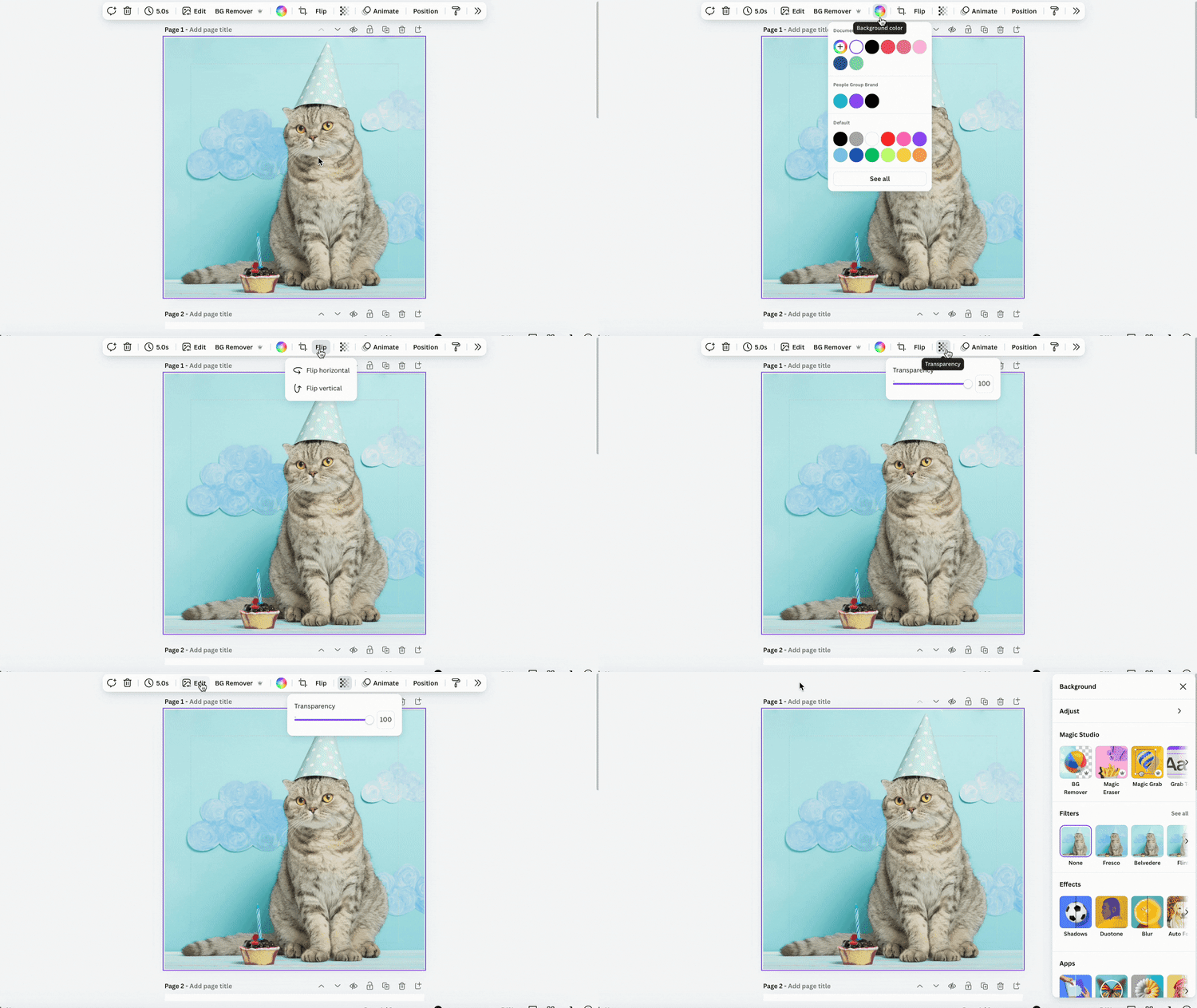
The Canva glow up includes a fresh homepage and editor designed for focused work. Canva made these changes to improve the way you create in Canva, and to make it easier to organize all of your designs, content, and documentation.

Click here to get to know the ‘glowed up’ editor and homepage, and/or watch the 3 minute video below:

Canva also provided an excellent ‘Back to School Teacher Toolkit‘ in case you missed it earlier in the year.

Finally, we wanted to include the latest edition of ‘Connecting the Dots‘ which is the periodic newsletter from Canva for Education. 

Communicate with every family in their home language—individually and at scale
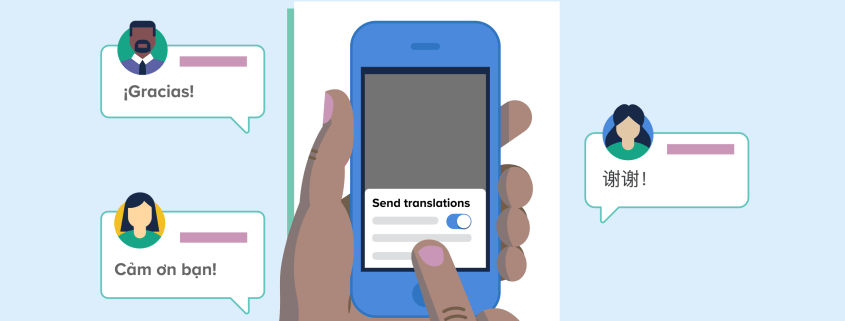
Preferred language translation lets you effectively reach all families in their home languages—from direct conversations to district-wide notifications.

Reach families in the languages they understand.

With preferred language translation, messages are automatically translated into 90+ languages on the Remind app and on the web. Parents can select their home language for messaging on Remind, or teachers and administrators can manually update preferred languages for hard-to-reach families.

Support family engagement with two-way translation.

When you send a message to a multilingual group, all you need to do is compose your message in English. From there, you can see which languages your message will be translated into, confirm the number of recipients per language, and preview the translated text, all from one place—no copying and pasting from Google Translate required. Plus, translations are two-way so you can answer questions and build stronger relationships. When a parent responds to your message in their home language, it’s translated back to the preferred language you’ve set.

For more information on Preferred Language:

Preferred language translation FAQs

How do I send translated messages as a teacher, parent, or student?

How can I receive messages in another language?

How can I set a preferred language for my class participants?
Jamboard is going away and Lucidspark is here to help.

Import all of your Jamboard files into Lucidspark before October 1st, 2024 to ensure that your Jams remain editable.


Read how to here.

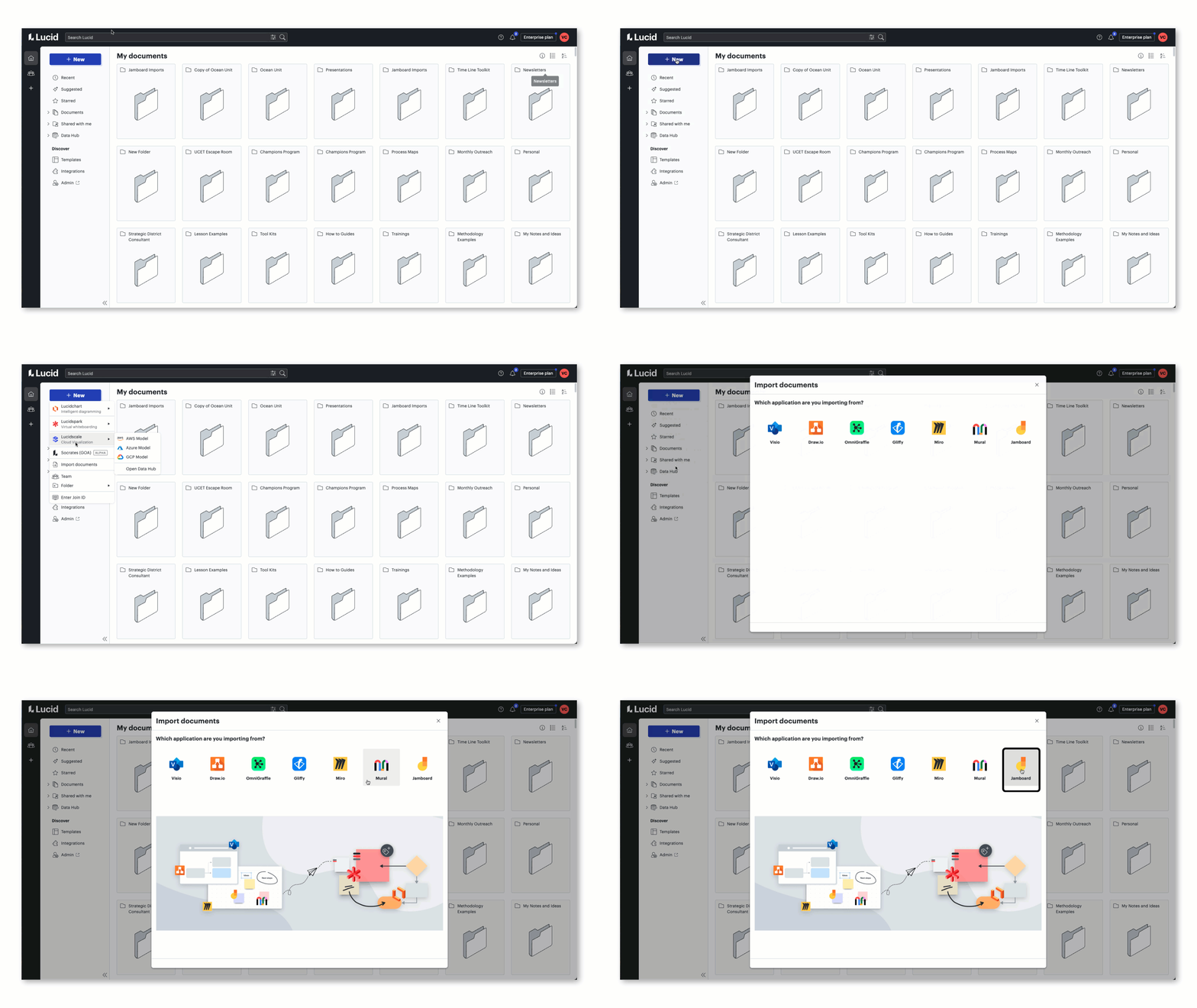
Step 1: Login to Lucid via LaunchPoint

Step 2:  Click the blue + New button

Step 3:  Select Import from the dropdown menu

Step 4:  Choose Jamboard

Did you know?   As of July 20th, we now have the ability to assign modules, pages, and ungraded discussions to sections and students!  Please see the resources below for all of the details on these robust new Canvas features:

  1. Canvas Release Notes from July 20th, 2024.
  2. Canvas Guide
  3. Feature Video:

This enhancement aims to improve teachers’ and students’ experiences by offering new customizations and interactive components, including @mentions, anonymous posting, post logging, and enhanced searching and sorting capabilities. This interface will also introduce other exciting features such as Discussion Summaries and Checkpoints, which are planned to be released in the coming months.

To ensure a smooth transition and help you make the most of these new features, here are a few resources:

  1. Instructional Video: This brief video provides an overview of the new features and changes that users can expect to see in the Discussions Redesign. You can watch it here.
  2. Two-Page Guide: This concise document explains which features have changed, and includes tips to assist you in leveraging the new features effectively. You can download the guide here.
  3. User Guides: Canvas has also created detailed “How-To” user guides for both the student and teacher roles.